Labels

Showing posts with label Games. Show all posts

Saturday, December 20, 2014

How to Play Nintendo Wii Games on Your PC (With Nintendo Games Download Link)

Hi..!

In this post I'm going to show you how to play your Nintendo Wii games on your PC. Also, if you don't have any Nintendo games don't worry this post also includes Nintendo games download links....

So, to play wii games on your pc you should download this software Known as Dolphin Emulator first.


About Dolphin Emulator:-

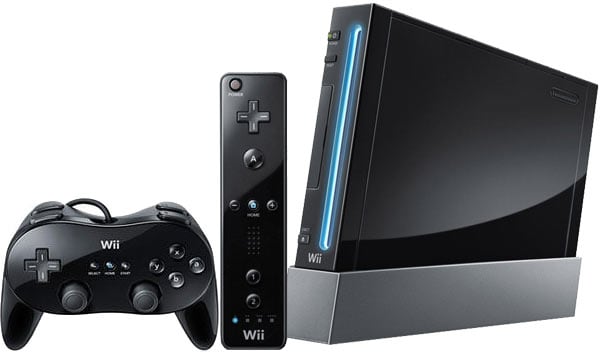
Dolphin is an emulator for two recent Nintendo video game consoles: the GameCube and the Wii. It allows PC gamers to enjoy games for these two consoles in full HD (1080p) with several enhancements: compatibility with all PC controllers, turbo speed, networked multiplayer, and even more!


 WWE '13


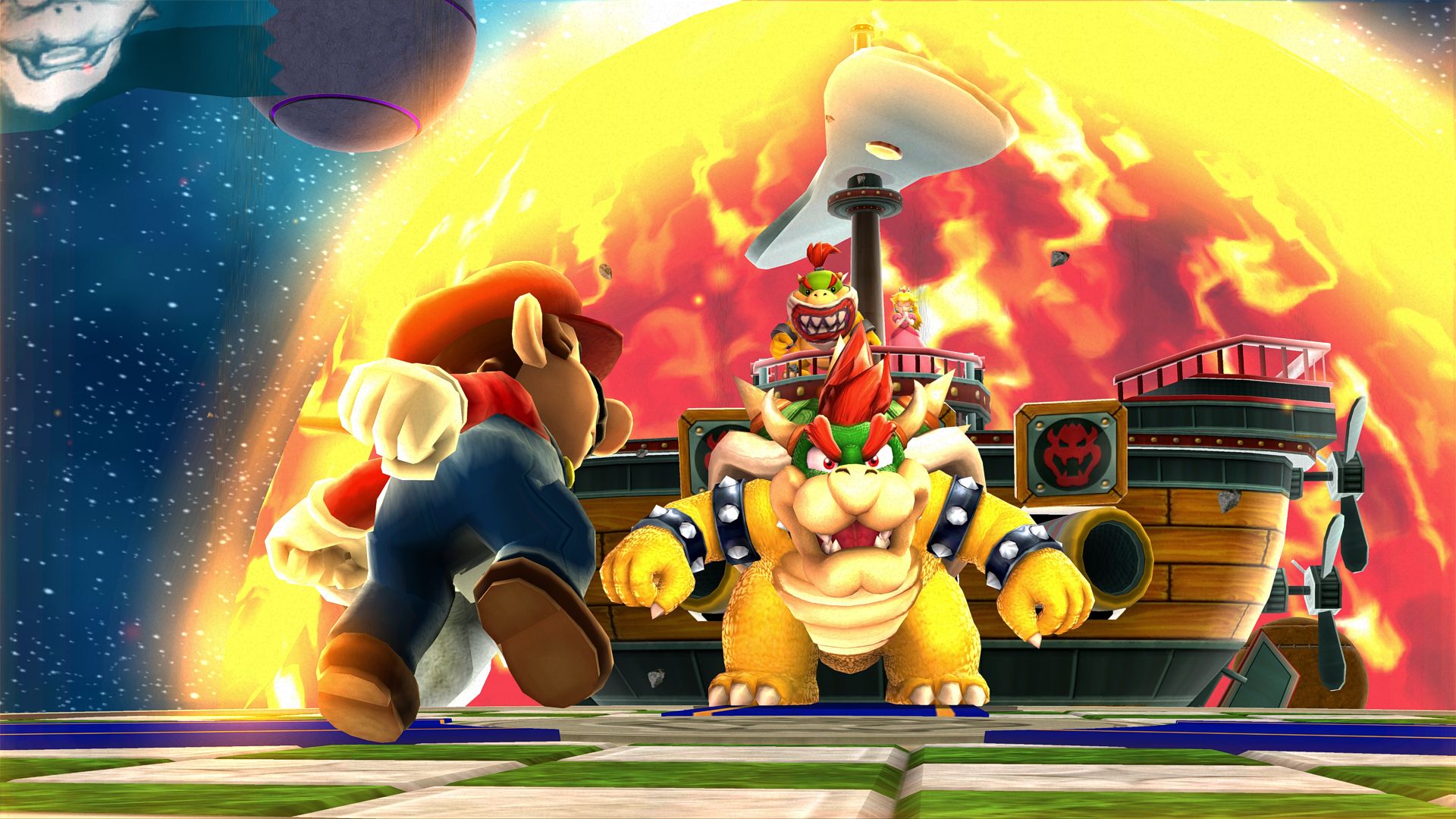
Super Mario Galaxy

Metroid Prime 3: Corruption


Just Download Software :- Download
For Nintendo Games :- Download

To Get Maximum Possible FPS You Should Also See this :- Click Here

Enjoy
:)

Tuesday, December 16, 2014

How To Play PSP Games On Your PC (with PSP Games download Link)

Hi All,

Today I'm Going to show you how you can play your PSP Games on Your PC...
This can be done through a Software known as "PPSSPP".


About PPSSPP:-

PPSSPP can run your PSP games on your PC in full HD resolution, and play them on Android too. It can even upscale textures that would otherwise be too blurry as they were made for the small screen of the original PSP.


Even on modern Android phones and tablets, you can often run at double the original resolution.


  • Play in HD resolutions and more
  • Play on a tablet for big-screen mobile gaming
  • Customize on-screen touch controls or use an external controller or keyboard
  • Save and restore game state anywhere, anytime
  • Crank up the anisotropic filtering and texture scaling
  • Continue where you left off by transferring saves from your real PSP

  • For Doubts and Support You can comment below....


Just Download Software :-   http://www.ppsspp.org/downloads.html

For PSP Games You can download from here :-  Download

Enjoy
:)


Friday, December 12, 2014

Using Your Android Smartphone As a X-Box 360 Controller

Recently, I came to knew about a android app Monect which makes your mobile phone or tablet act as a Xbox 360 Controller for PC using Bluetooth or Wifi. If you have a bluetooth adapter  or a wifi Router than its very good and best for you.


FEATURES :

• Remote Desktop - Touch window on your phone.

• Projector - share pictures, videos & screen of your phone on PC's big screen.

• Fly mode - Play fly game such as Ace Combat with G-Sensor.

• PPT sync - you can see the ppt pictures and notes directly on your phone even play select & mark.

• RaceMode - Play PC driving game by your phone over wi-fi or bluetooth using G-Sensor!

• TouchPad - Simulate touch pad on your phone with many gestures supporting, just like Apple's 
trackpad!

• My Computer - Exploring PC files on your phone!

• Joystick - Simulate joystick so you can play street fighter or dmc etc.

• FPS mode - Using gyroscope to aim the target just like a real gun in your hand, perfect support COD serial!

• Keyboards - Simulate typewriter keyboard, function keyboard, numeric keyboards...

• Text transfer - Type text on your phone and then transfer text to PC directly with one hit!

• Browser, Media Control- Easily control all kinds of web browser & media player!

• And many more...


Installation Steps:


1. Download Monect from Play Store : http://sh.st/eMFul (just wait 5 secs and click SKIP AD)

2. Install Monect on you Phone/tablet

3. Download v3.8.4 and Install on PC : http://sh.st/eMFxN(just wait 5 sec and Click SKIP AD)

4. Open Monect app on phone and click bluetooth or Wifi and click on you PC Name or address to connect

5. now open a game and click race mode or gamepad and start playing. Enjoy

6. for Doubts and Support you can comment below .......................!


SCREENSHOTS :

Phone App View

 Race Mode View


Joypad Mode View


BlueStacks App Player- (Play Android Games and Apps On Your PC)

Do you have yourself a computer? A mac or windows machine? Do you wish to run android apps and games on your computer? Well then, this article is for you! I'm going to tell you how you can get the android environment to run on your computer so that you can play games and run almost every android app!

So What Are You Waiting For? Lets Get Started....!

Step 1:-
Download This application,

http://www.bluestacks.com/


Start off by downloading this program. It's a free program and works on both Mac and Windows. If you're wondering 'What is it?' well, it's a program that can run the android environment on your computer.


Play Android Games on a PC with BlueStacks Step 2.jpg


Step 2:-

Installation: For Windows users, it should be a small file (around 20 MB) which you will need to open up and later download the packages (automatically) and you're good to go. Mac users, it should be a 100 MB .dmg file which you will need to mount and drag the .app file to your preferred location on your computer.


Step 3:-

Open it up: After all the hassles are out of the way, gently open up BlueStacks. It should take some time to load the first time around, but it will get good in time.


Step 4:-


Install desired apps: Yay! you finally can install and run android apps now. All you need to do is make sure you have a google account. To download and install an app, simply hit that 'search' icon and type in the name of any app you wish to download and install it

Step 5:-

Enjoy The App,
:)
.